How to Run Network Models
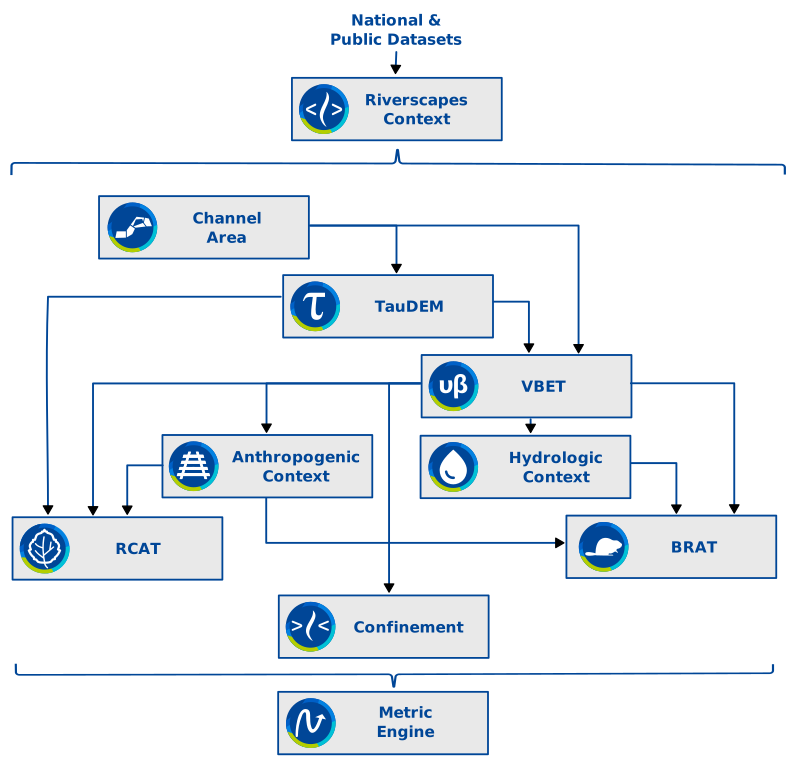
The Riverscapes network models consist of ten or more geospatial models for analysing different aspects of riverscapes. The models can be chained together into a "waterfall" that starts by collecting together relevant datasets in the Riverscapes Context model and culminates in the Metric Engine (RME).
You can run one or more of these models for your area of interest using your own data. There are several strategies for doing this that range in complexity. Which one is right for your needs depends on your appetite for confinguring software as well as the scale of your data.
This page describes the various options and provides a brief overview of the tradeoffs between them. If you have questions or want to discuss either running the Riverscapes Consortium's network models or your own code using any of these strategies then contact support@riverscapes.freshdesk.com.
| Strategy | Description | Advantages | Disadvantages |
|---|---|---|---|
| Local Install | Clone the model code to your own computer and install the necessary Python dependencies. | Maximum control. Good when the data are too large for the other strategies. Good when you need to make changes to the code. | More complex configuration. Running the correct version of python and provisioning a compatible environment can be challenging, especially with IT-restricted machines. |
| VSCode Dev containers | Clone the model code to your local machine and run a docker environment locally. | Sidesteps some of the configuration problems associated with Python environment configuration on an individual machine. Will run in Linux mode, even on Windows machines. | Requires Docker to be installed locally. Initial build can be slow, especially on older hardware. Some graphical or OS-level features may not be available |
| GitHub Codespaces | GitHub's virtual computing environment. | Consistent environment for all contributors. Easy onboarding-just open in VS Code and build. Isolated from host machine, avoiding dependency conflicts. Supports custom tooling and extensions. | There are costs associated with Codespaces. Processor and storage limitations. Codespaces are ephemeral and are automatically cleaned up if they are not used. Basic linux and git command-line knowledge is recommended. |
| Cybercastor | The Riverscapes Consortium's own cloud computing platform. | Designed specifically for this purpose. Tight integration with the Riverscapes Data Exchange. Good for large numbers of jobs running simultaneously. | There are costs associated with Cybercastor. |
Local Install
Installing Python and running the network models on your local computer is likely the most difficult of the three options. The network models depend on several Python packages, some of which involve nuanced install steps that vary based on your Python environment and operating system. Several dependencies include binary files that cannot be installed with uv or pip and require wheel files specific to your OS.
Riverscapes Consortium developers almost never choose to install the models locally. If we do, it's typically on macOS or Linux. Configuring Windows computers with the dependencies has proven inconsistent, unreliable, and time-consuming.
Step-by-Step Instructions
-
Install Python
- Use Python 3.12 or newer (check the required version in pyproject.toml).
- On macOS/Linux, use
brewfor installation. - On Windows, use the official installer, but expect additional troubleshooting.
-
Upgrade pip and Install uv
- Run:
pip install --upgrade pippip install uv
- Run:
-
Install Python Dependencies
- Use
uvorpipto install dependencies frompyproject.toml:uv sync
- Use
-
Manual Steps for Problematic Packages
- Some packages (e.g., GDAL, numpy, scipy) may require system-level libraries. Install these using your OS package manager:
- macOS:
brew install gdal - Ubuntu:
sudo apt-get install libgdal-dev
- macOS:
- Then retry installing the Python package.
- Some packages (e.g., GDAL, numpy, scipy) may require system-level libraries. Install these using your OS package manager:
Tips
- Always consult the pyproject.toml for exact package versions.
- If you run into issues, search for pre-built wheels or consult package documentation for OS-specific instructions.
- Consider using Docker or Dev Containers for a more reliable setup.
VS Code Dev Container
Dev Containers use Docker to create a reproducible development environment inside VS Code. The Dockerfile defines all dependencies, tools, and settings, so every developer gets the same setup regardless of their host OS.
Prerequisites
- Install Docker
- Install Visual Studio Code
- Install the Dev Containers extension
Steps
- Open the Project in VS Code
- Launch VS Code.
- Open the
riverscapes-toolsfolder.
- Reopen in Container
- Press
F1(orCmd+Shift+P) to open the Command Palette. - Search for
Dev Containers: Reopen in Containerand select it.
- Press
- Wait for Build
- VS Code will build the container using the project's
Dockerfile. - The environment will be set up automatically.
- VS Code will build the container using the project's
- Start Developing
- Once the container is ready, you can use the integrated terminal and editor as usual.
- All dependencies and tools will be available inside the container.
GitHub Codespaces
GitHub Codespaces are virtual computers on which you can run the network models. Pre-configured Codespaces with all the necessary Python dependencies already exist, making it easy to launch a new virtual machine to run any of the network models.
You pay for the Codespaces through your own GitHub account. See the pricing here. You are charged for the time that the Codespace is active, as well as the size of the machine that you choose (memory, CPU, disk space etc).
The integration between Codespaces and Visual Studio Code is extremely convenient. If you have Visual Studio Code installed on your local computer (highly recommended) then it connects directly to the Codespace running in the cloud on GitHub. The experience looks and feels like you are developing locally, but the code iteself is running in the cloud. (If you don't have Visual Studio Code then connecting to a Codespace means using a browser-based version of Visual Studio Code, which is surprisingly good experience, but not quite as convenient as using a local version.)
Here are the steps for running Riverscapes network models on Codespaces:
- Install Visual Studio Code.
- Visit the tools.riverscapes.net GitHub repository and fork it into your own GitHub account.
- Click the triangle on the green "Code" button on the GitHub repo page.
- Switch to the Codespaces tab.
- Click the green "Create codespace on main" button.
You will be asked if you want to launch Visual Studio Code locally or on the web. We recommend locally, but either option works. The Copespace will take several minutes to build, install all the necessary Python dependencies, and open in Visual Studio Code.
Workspaces
Pick which network model that you want to run and open the corresponding workspace stored in the /Workspaces folder. This will configure Visual Studio Code, set path locations, turn on helpful extensions etc. Not using the correct Workspace will likely make the process extremely frustrating.
Running Network Models in Codespaces
You should now be ready to run Riverscapes network models. That said, typically you will want to provide input data for the model and we recommend the following:
- Open a terminal in Visual Studio Code.
- Create a folder called
/Workspaces/data
Place input data in this folder, organized however you want, and then edit the launch.json in the network model that you want to run (here's the link to the BRAT launch.json) and point each input dataset to your corresponding data in the /Workspaces/data folder.
Remember that Codespaces use virtual computers that disappear when you have finished with them. Download any data that you want to keep (e.g. configuration files you have edited or model output data) when you are finished. You do this by right clicking on the folder or file in the Visual Studio Code explorer tree and choosing "Download".
Cybercastor
The Riverscapes Consortium has developed a batch processing platform for running riverscapes network models. Cybercastor can orchestrate an unlimited number of model runs, with hundreds running in parallel, using extremely cost effective virtual computers running in the cloud.
Cybercastor retrieves projects from the Data Exchange, feeds them into the current model run and then uploads the model output data into the data exchange. Data can be pulled from external sources using API calls etc.
Contact support@riverscapes.freshdesk.com for pricing running your data in Cybercastor or how to make your model to be compatible. The compute costs are minimal when compared to the human labour costs to configure either the local install or Codespace options described above. Typically model runs can be completed in a matter of a day or two once the input data are available in the Data Exchange.