Downloading Multiple Projects
When using the Data Exchange platform, you might find yourself needing to download multiple projects at once. This could involve downloading several projects of the same type, like all BRAT projects in Idaho, or gathering all the projects for a specific area, such as different data themes for your project region.
There are several approaches available, depending on your technology setup and comfort level with scripting an automated solution.
Brute Force
For small numbers of projects, you can download them manually from the Data Exchange website (click the download arrow next to each project), use the QViewer downloader feature, or utilize the Riverscapes Command Line Interface (rscli).
While this method is only practical for small numbers of projects, it's worth considering as a straightforward approach that requires minimal technical expertise.
Command Line
The Riverscapes Command Line Interface (rscli) is an excellent tool for downloading data exchange projects. It offers several advantages over other methods. First, it downloads project files directly, eliminating the need to unzip downloaded files. Second, it allows you to filter which files are downloaded using filter expressions.
You can combine rscli download commands into a batch file (on Windows) or a shell script (on MacOS or Linux) to download multiple projects efficiently.
The following example demonstrates this approach for three projects. Note the use of the --no-input option. Running this script opens a separate web browser tab for each project to authenticate, but it doesn't pause for user input. Each project is also downloaded to its own folder named with the project's unique identifier (GUID). While expanding this approach to hundreds of projects will open many browser tabs, it still works.
See the section at the bottom of this page for instructions on obtaining project GUID identifiers.
rscli download --no-input --id b313f426-87cd-4b78-886f-86a9ec8c02ca ./b313f426-87cd-4b78-886f-86a9ec8c02ca
rscli download --no-input --id e56612d8-9332-42eb-9f93-6b8f05467462 ./e56612d8-9332-42eb-9f93-6b8f05467462
rscli download --no-input --id 614ce6bf-5fd8-4b38-bdfd-37fcb63b7b9a ./614ce6bf-5fd8-4b38-bdfd-37fcb63b7b9a
etc etc
An incremental improvement on this approach is to store the GUIDs in a CSV file and use Python to loop over each row and run the rscli command:
import csv
import subprocess

# Read project GUIDs from a CSV file
with open('project_guids.csv', mode='r') as file:
    reader = csv.reader(file)
    project_guids = [row[0] for row in reader]

# Download files for each project
for projectguid in project_guids:
    subprocess.run(['rscli', 'download', '--no-input', '--id', projectguid, f'./{projectguid}'], check=True)
Python Scripting
The Riverscapes consortium provides Python scripts that demonstrate how to loop over multiple projects and download all the individual files. While this requires some scripting knowledge, much of the work involves configuring a Python environment, as the core scripts are already available.
Multiple Project Download by CSV Python Script
To run this script effectively, fork the data-exchange-scripts repository and use uv to create a Python virtual environment. Then, run the code in Visual Studio Code.
Reports
The Riverscapes Reports platform allows you to specify an AOI and download key metrics from the riverscapes network models run for 99% of the contiguous United States (CONUS). You can draw the AOI, upload a polygon, or select from existing boundary layers.
The IGO scraper report provides riverscape centroid points along with a rich suite of metrics from the Riverscapes Metric Engine (RME).
This approach assumes that the information you're interested in is already available in RME and that you want the most recent model run for each CONUS watershed.
Custom Merged Project
The Riverscapes Consortium developers can create a custom project union to merge geospatial data from multiple projects into a single project. This is only feasible for individual riverscape project types (e.g., RS Context, VBET, RCAT) and has a practical limit of around 100 projects or less.
If you're interested in this option, contact support@riverscapes.freshdesk.com.
How to Obtain a List of Projects
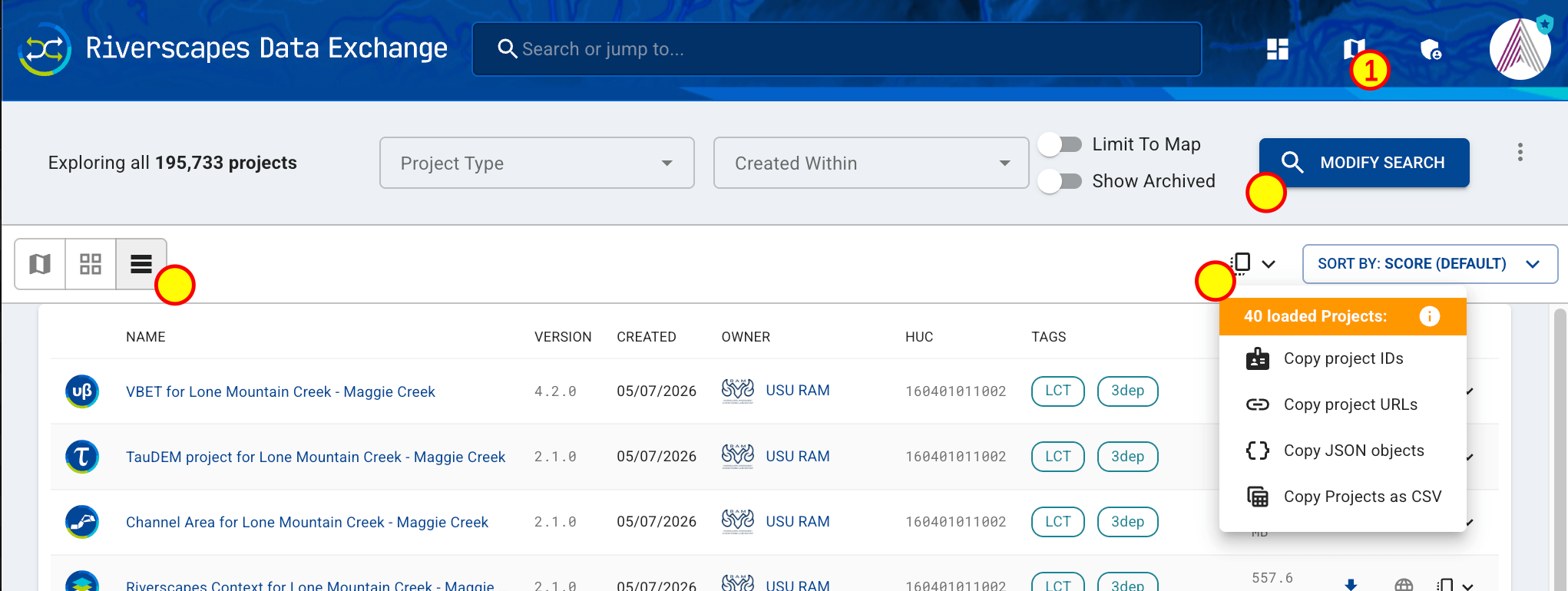
Several of the approaches above rely on having a list of projects to download. Use the following steps to obtain a list of project identifiers (GUIDs) for the projects that you wish to download:
- Log into the Riverscapes Data Exchange
- Click the "Explore our Project Map" in the top centre of the dashboard, or click the map icon top right.
- On the project map, click the "Modify Search" button top right.
- Enter your search criteria and then click "Search".
- On the top left of the search results click the icon with three horizontal lines to view the results as a "Table".
- On the top right click the Copy icon and choose "Copy Project IDs".
- Open a text editor and paste the project IDs, saving them to a text file.